LaTeX Tutorial Series: Introduction to LaTeX
Many people, whether during their student years or in their professional careers, have experienced the painful process of writing reports. Those who frequently use Microsoft Word or PowerPoint may have noticed that inserting images and placing them exactly where you want is surprisingly time-consuming. On one hand, every image has a different size, requiring individual adjustment after importing. On the other hand, Word and PowerPoint are not particularly smart1 when it comes to arranging text and images together.
The History of LaTeX
LaTeX is a powerful typesetting system that is widely used for producing documents in science, technology, engineering, and mathematics. Its predecessor is the TeX system, invented by Donald Knuth in 1978. Knuth, a renowned computer scientist, designed TeX himself in order to address the limitations of typesetting systems at the time, with the goal of producing high-quality documents and books.
However, despite its powerful capabilities, TeX was not very friendly to ordinary users — it required writing a large amount of code and configuring many settings in advance. To solve this problem, Leslie Lamport developed LaTeX in 1984, building on top of TeX. LaTeX simplified the document writing process significantly: users can focus entirely on the content they are writing, without worrying about the specific details of typesetting. This is exactly what LaTeX is most proud of — What You See Is What You Get.
Prerequisites: Compilers and Editors
“To do a good job, one must first sharpen one’s tools.”
Just as writing has always required tools — paper and pen in the old days, computers or tablets nowadays — LaTeX also needs two essential components before you can get started: a compiler and an editor2.
Compilers
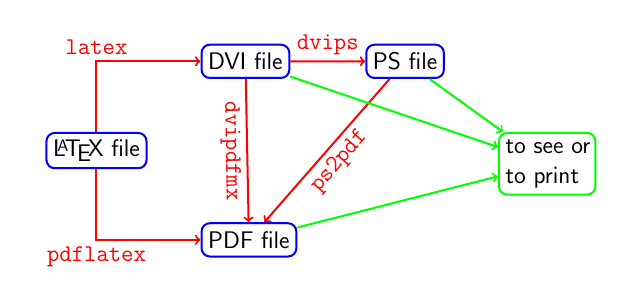
Before entering the world of LaTeX, the most important step is to set up your environment. You must follow one golden rule: always install the compiler before the editor! This is because the editor is simply a place for typing — it relies on the backend compiler engine to handle all the typesetting logic. If you do it in the wrong order, you may run into issues where the editor cannot detect the compiler’s path.
| Operating System | Recommended Compiler | Features & Advantages | Best For |
|---|---|---|---|
| Windows | MiKTeX | Lightweight, with an “auto-install missing packages” feature — it only downloads what you need. | Beginners with limited disk space who prefer a clean interface. |
| TeX Live | The international standard, installed as a complete package at once, offering the highest compatibility and stability. | Power users who want a one-time setup and have sufficient disk space. | |
| macOS | MacTeX | A macOS-optimised version of TeX Live, with integrated Mac-specific font and path management tools. | All macOS users (the preferred choice to avoid system path conflicts). |
| Linux | TeX Live | Available in the official repositories of most distributions, with tight integration into the system kernel. | Open-source enthusiasts and developers who need a highly customisable environment. |
If you do not want to install a large software package on your local machine, or if you need to collaborate with others, Overleaf is a highly recommended option. Overleaf is a powerful web-based platform that runs entirely in your browser, with the latest TeX Live environment built in — no installation required. It is a great solution for those who prefer a lightweight approach. However, Overleaf occasionally goes under maintenance, so it is still worth learning how to set up a local compiler and editor.
Editors
Compared to compilers, where there are strict recommendations depending on your operating system, the choice of editor is much more flexible. An editor is essentially a “text input interface” — as long as it can produce a .tex file, even your computer’s default Notepad could technically serve as your LaTeX tool.
That said, choosing a professional editor with features such as syntax highlighting, auto-completion, and live preview will make your writing experience significantly more efficient.
| Editor | Features & Advantages | Best For |
|---|---|---|
| TeXstudio | The most feature-complete IDE available, with a built-in mathematical symbol panel and real-time syntax checking. | Users coming from Word who need visual tools to guide them. |
| TeXmaker | Clean interface, excellent cross-platform support, and very intuitive configuration — a classic choice for many experienced users. | Users who prefer stability and do not want overly complex features. |
| Visual Studio Code | By installing the LaTeX Workshop extension, it offers powerful code completion, jump-to-definition, and a beautiful UI. | Developers already using VS Code, who enjoy a modern interface and high customisability. |
Whichever editor you choose, please make sure your compiler (MiKTeX / TeX Live / MacTeX) is already installed and working. Only then can the editor successfully convert your code into a beautiful PDF!
An Overview of LaTeX Syntax
Before we dive into the syntax in detail, let us first look at a simple example to understand the basic structure of a LaTeX document:
\documentclass[12pt]{article}  % Define document type and font size

\title{My First Document}      % Title
\author{Author}                % Author
\date{\today}                  % Date

\begin{document}               % Body begins
\maketitle                     % Generate the title block

This is my first \LaTeX\ document!

\end{document}                 % Body ends
As you may have already noticed, LaTeX commands always begin with a backslash \. Whenever you need to use a command, you must tell the LaTeX compiler by starting with \, otherwise the computer will simply treat it as ordinary text.
Besides the backslash, LaTeX also has a number of reserved characters that carry specific functions. You must use them correctly when they appear in your document:
| Symbol | Function | Description |
|---|---|---|
\ |
Command prefix | The starting point of every LaTeX command, used to invoke formatting or functionality. |
% |
Comment | Any text after this symbol will be ignored by the compiler. Commonly used for writing notes. |
# |
Parameter marker | Used when defining macros or custom commands to specify argument placeholders (e.g., #1, #2). |
~ |
Non-breaking space | Inserts a space that will not be broken by automatic line wrapping. |
$ |
Math mode toggle | Text enclosed between two $ signs enters the Math Mode environment. |
^ |
Superscript | In math mode, raises the following character to a superscript (e.g., \(x^2\)). |
_ |
Subscript | In math mode, lowers the following character to a subscript (e.g., \(a_n\)). |
& |
Column separator | Primarily used in tables and aligned equations to separate columns or entries. |
{ } |
Grouping & arguments | Used to define the scope of a command, or to wrap the required arguments of a command. |
If you want to display any of the above symbols literally in your document — for example, 50% or $ — you cannot simply type them directly. Most of these symbols need to be escaped by placing a backslash in front of them:
- Type
\%to display% - Type
\$to display$ - Type
\_to display_
Using Arguments
In \documentclass[12pt]{article}, you can see two different types of brackets, each with its own role in LaTeX:
- Optional argument
[...]: Typically used to adjust settings (such as the font size12pt). These arguments can be left empty — if omitted, the system will simply apply the default value. - Mandatory argument
{...}: Defines the core content of a command (such as the document classarticle). If this is left empty or omitted, the compiler will throw an error because it does not know what to act on.
Before you start typing, please keep these two concepts in mind — they are quite different from how Word works:
- Spaces: In a LaTeX document, one space and ten spaces have the same effect. The compiler always treats them as a single space.
- Line breaks: Pressing
Enteronce does not create a new line in the PDF output. To force a line break, use:- Commands:
\\,\newline, or\linebreak. - Keyboard shortcut: Windows users can press
Ctrl + Enter; macOS users can press⌘ + ↩︎.
- Commands:
Using Commands
A LaTeX command typically starts with a backslash \ and ends at the first “non-letter” character (such as a space, punctuation mark, or digit). This can lead to a common problem:
This is my first \LaTeX typesetting example.Because the space after \LaTeX is consumed as the command terminator — it gets “eaten up” — the output becomes: This is my first LaTeXtypesetting example., with the words squashed together!
To avoid this, there are three standard solutions:
{\LaTeX}: Isolate the command inside curly braces.\LaTeX{}: Add an empty pair of curly braces after the command.\LaTeX\: Add a backslash followed by a space to force the output of one space.
\documentclass[12pt]{article}

\title{My First Document}
\author{Author}
\date{\today}

\begin{document}
\maketitle

This is my first \LaTeX typesetting example.    % Words squash together

This is my first {\LaTeX} typesetting example.  % Method 1: isolate with curly braces

This is my first \LaTeX{} typesetting example.  % Method 2: add empty curly braces after the command

This is my first \LaTeX\ typesetting example.   % Method 3: add backslash and space to force output

\end{document}
Using Comments
The comment symbol % can be placed anywhere in the document. Any text that follows it on the same line will be ignored by the compiler and is usually displayed in a different colour in the editor. Comments are useful not only for writing notes, but also for “experimenting” — when you want to test whether a certain setting looks better, you can “comment out” the old setting rather than deleting it, making it easy to switch back and compare the differences.
Using Environments
LaTeX has a powerful structure called an environment, which defines a specific region in which the enclosed content follows a particular set of typesetting rules.
Every environment must have both an opening and a closing tag:
\begin{environment name}
The content affected goes here ...
\end{environment name}
The most fundamental environment is document. All content you want to appear in the final output must be placed inside it. This forms the standard skeleton of a LaTeX document:
\documentclass[12pt]{article}
% This is the preamble

\begin{document}
This is the "body" ...
\end{document}
Exercises
What is the correct order when setting up a LaTeX environment?
The correct answer is to install the compiler first. Editors need to detect the compiler’s path to function correctly. If you install the editor first, it may fail to locate the compiler, making configuration difficult. While Overleaf requires no installation, you should still follow this order when setting up a local environment.
In \documentclass[12pt]{article}, what kind of argument is 12pt?
12pt is placed inside square brackets [], making it an optional argument — it can be omitted, in which case LaTeX defaults to 10pt. The article inside curly braces {} is the mandatory argument and cannot be left out.
What does the % symbol do in LaTeX source code?
% is LaTeX’s comment character. Everything following it on the same line is ignored during compilation and will not appear in the PDF. To display an actual percentage sign in your document, you must type \% (escaped with a backslash).
Write a minimal LaTeX document using the article class with a 12pt font size that outputs the line Hello, LaTeX!.
\documentclass[12pt]{article}

\begin{document}

Hello, LaTeX!

\end{document}
This is the simplest valid LaTeX document. \documentclass defines the class and options; all body content must sit between \begin{document} and \end{document}; the preamble (between the two) is left empty here but is where you would load packages and configure global settings.
Chapter Summary
In this chapter, we have lifted the curtain on LaTeX and established the correct mindset for typesetting. Here are the key takeaways:
Core Concept: Separation of Content and Formatting
- LaTeX allows you to focus on “writing content”, while the “professional typesetting” is handled by the compiler.
- Unlike Word, LaTeX uses commands to precisely control the structure of a document.
Environment Setup: Order Matters
- Golden rule: You must install the compiler first (e.g., TeX Live, MiKTeX, MacTeX), and then install the editor (e.g., TeXstudio, VS Code).
- If you want to skip the installation process, Overleaf is the most convenient cloud-based alternative.
Quick Syntax Reference
- Command prefix: All commands begin with a backslash
\. - Argument types: Square brackets
[]are optional “add-ons”; curly braces{}are required and cannot be omitted. - Spaces and line breaks: Multiple spaces are treated as one; use
\\or a blank line to create a new paragraph. - Document structure: A complete document consists of a “Preamble” and a “Body” wrapped inside the
documentenvironment.
Footnotes
The word “not smart” here does not refer to the “wrap text around a picture” feature itself, but rather to the fact that images tend to drift out of their intended position — they often shift around depending on how much text is on the page, and adjusting them manually can be an exhausting experience.↩︎
The editor is used for writing and managing LaTeX code, providing a convenient writing environment; the compiler is responsible for converting that code into the final output document.↩︎
Choosing a LaTeX Compiler. (n.d.). Overleaf, Online LaTeX Editor. https://es.overleaf.com/learn/latex/Choosing_a_LaTeX_Compiler%23Other_compilers↩︎